Images are usually the heaviest files on a page. When they are wider than the layout, or saved as a heavy JPEG or PNG, the page feels slow. The largest picture is often what Google records as Largest Contentful Paint.
This review compares 10 image compression tools for websites. It covers WebP, AVIF, PNG and JPEG, when a free online compressor is enough, and when a plugin should look after the library.
What is the Best Image Compression Tool for Websites?
For a WordPress site with a media library, ShortPixel is the best image compression tool: it compresses the uploads in bulk and writes WebP and AVIF copies beside the originals. TinyPNG is the best free online compressor for a handful of files on any site. Use Squoosh when you need to compare WebP, AVIF and JPEG on one image before you publish it.
Match the tool to the job:
- WordPress library, including bulk WebP and AVIF: ShortPixel.
- Free online compressor, no install: TinyPNG.
- One image, and you want to judge the quality yourself: Squoosh.
- Free WordPress plugin that runs on your server: EWWW Image Optimizer.
- An API, or a Magento store: Kraken.io.
- A Mac, before the files are uploaded: ImageOptim.
- A hero you are already designing: Photoshop or GIMP.
Resize the image to the size the page displays, compress it, then serve WebP or AVIF with a JPEG or PNG fallback.
Image compression tools compared
| Tool | Best for | Formats | Free tier / price |
|---|---|---|---|
| ShortPixel | Bulk WebP and AVIF on WordPress | JPEG, PNG, GIF, WebP, AVIF | Free monthly credits; paid plans for a whole library |
| TinyPNG | Free online batches | JPEG, PNG, WebP, AVIF, JPEG XL | 20 images a session, 5 MB each. API: 500 free compressions a month |
| Squoosh | Comparing WebP, AVIF and JPEG | JPEG, PNG, WebP, AVIF, JPEG XL | Free. Runs in the browser, one image at a time |
| Kraken.io | API, WordPress and Magento | JPEG, PNG, GIF, SVG, WebP, AVIF, HEIC, PDF | 100 MB free test quota; plans from $5 a month |
| EWWW Image Optimizer | Free compression on your own WordPress server | JPEG, PNG, GIF, WebP; AVIF on Easy IO | Plugin free; Easy IO from $8 a month |
| ImageOptim | Local compression on a Mac | JPEG, PNG, GIF, SVG | Free. Does not export WebP or AVIF |
| Compressor.io | A quick lossy or lossless file | JPEG, PNG, GIF, SVG, WebP | Free online compressor |
| JPEGmini | JPEG photographs | JPEG, including HEIC converted to JPEG | Paid desktop app, with a web version to try |
| Adobe Photoshop | Hero images you are already editing | JPEG, PNG, GIF, WebP, AVIF | Creative Cloud subscription |
| GIMP | Free manual WebP and AVIF export | JPEG, PNG, GIF, WebP, AVIF | Free |
Prices are in US dollars, as the vendors publish them. Allowances change, so confirm the current figure before you buy.
How much you save depends on the picture. The table compares the job, the formats, whether the tool can process a library or only one file, where the file is processed, and the free tier.
How to compress images for the web
Image compression for a website is five steps. Do them in order. A quality slider cannot rescue a file that is four times wider than the slot it sits in.
1. Resize to the size the page displays
Measure the slot in the template. A column that is 760 pixels wide does not need a 4,000-pixel photograph. Export at the display width, and export a double-width file as well if you want it sharp on high-density screens. srcset can choose between them.
Resizing sits alongside lazy-loading, CDNs and caching in How to Optimise Images to Increase Page Speed.
2. Choose the format
Use AVIF or WebP for photographs, with JPEG as the fallback. Use SVG for logos and simple icons. Use WebP or PNG for graphics that have flat colour, hard edges or transparency. Leave GIF for small animation, not for photos. Choosing between WebP, AVIF and JPEG is covered further down, and the FAQ has the short version.
3. Compress, lossy or lossless
Photographs can take lossy compression. Logos, icons and images with small text should stay lossless. TinyPNG and Squoosh are enough for a page you are editing by hand. A WordPress media library should go through ShortPixel or EWWW Image Optimizer, so the next upload is compressed too. The plugin choices are in 6 WordPress plugins for optimising images.
4. Load the image so it helps Core Web Vitals
Give every image a width and a height. The browser can then reserve the space, which protects Cumulative Layout Shift. Lazy-load images below the fold. Leave the first, largest image out of lazy-loading. That picture is often the Largest Contentful Paint element, and delaying it makes the score worse. Where the template allows it, set fetchpriority to high on that hero.
Write alt text that describes the picture for someone who cannot see it.
5. Measure the page, not only the file
Run the URL in PageSpeed Insights and read LCP for the template you changed. How to test, and what to do after the images, is in the page speed optimisation guide. A small image on a slow server is still a slow page.
The 10 best image compression tools
1. ShortPixel – best for bulk WebP and AVIF compression
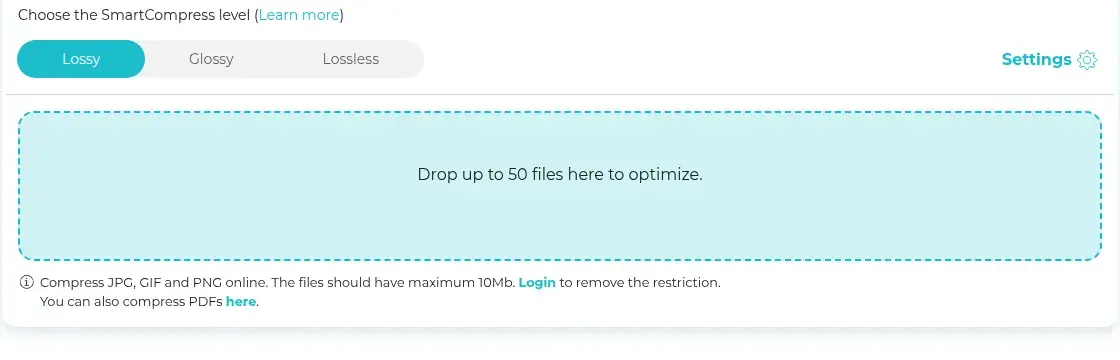
ShortPixel is the tool to install on a WordPress site that already has a media library. It compresses existing uploads in bulk, then keeps compressing new ones. It writes WebP and AVIF alongside the originals, so the page can serve a smaller file without a separate export.
Best for: WordPress sites that need the whole library done, including WebP and AVIF.
Also runs as: an online compressor, for a site that is not on WordPress. The plugin is what makes ShortPixel the best fit for a WordPress library.
Formats: JPEG, PNG, GIF, WebP and AVIF. It can turn an animated GIF into an animated WebP or an MP4, and it can convert BMP and TIFF into web formats.
Compression: Lossy, Glossy and Lossless. Glossy sits between the other two. Start there for brand photography, then check the templates that carry the most traffic.
Price: A free monthly credit allowance, then paid monthly plans or one-time credit packs. A WebP or AVIF copy uses credits as well as the original, so a large library costs more than compressing the originals alone. Check the current pricing page before you run it across every thumbnail.
How to use it:
- Install ShortPixel Image Optimizer in WordPress and connect the API key.
- Choose Glossy, and turn on WebP and AVIF conversion.
- Run bulk optimisation. Exclude thumbnail sizes the theme never prints. ShortPixel can choose which generated sizes are processed.
- Open two or three important URLs and confirm the image requests are the new files.
ShortPixel fits agencies and multisite installs, and it can be run from the command line. It is the wrong first choice if you only have five pictures and no WordPress site. Use TinyPNG for that.
2. TinyPNG – best free online image compressor
TinyPNG (Tinify) is the fastest way to compress a small set of images in the browser. You drop files on the page, and it returns smaller ones. It handles PNG, JPEG, WebP, AVIF and JPEG XL, which is a long way from the PNG-only tool people still remember.

Best for: A free online image compressor when you are publishing a page today and you do not want an account.
Also runs as: a developer API, an official WordPress plugin, and community plugins for other platforms.
Price: Free web use is 20 images per session and 5 MB per image, with up to three format conversions per session. Paid web plans remove the session cap and raise the file-size limit. The API includes 500 free compressions each month, then a per-compression charge, with no monthly minimum. The allowance is listed in the developer docs.
How to use it:
- Open tinypng.com and drop up to 20 files on the page.
- Download the results and upload them to the page.
- On a site that keeps growing, connect the WordPress plugin or the API. The free web page will not watch the library for you.
TinyPNG’s strength is that the default result looks clean on photographs and on graphics with transparency. It is a manual step. For a catalogue of thousands of images, move to ShortPixel, EWWW Image Optimizer or Kraken.io.
3. Squoosh – best for comparing WebP, AVIF and JPEG
Squoosh is a browser app from the Chrome team. The image stays on your computer. Squoosh compresses it locally, which makes it the right place to try a hero image before you commit the whole site to a format.
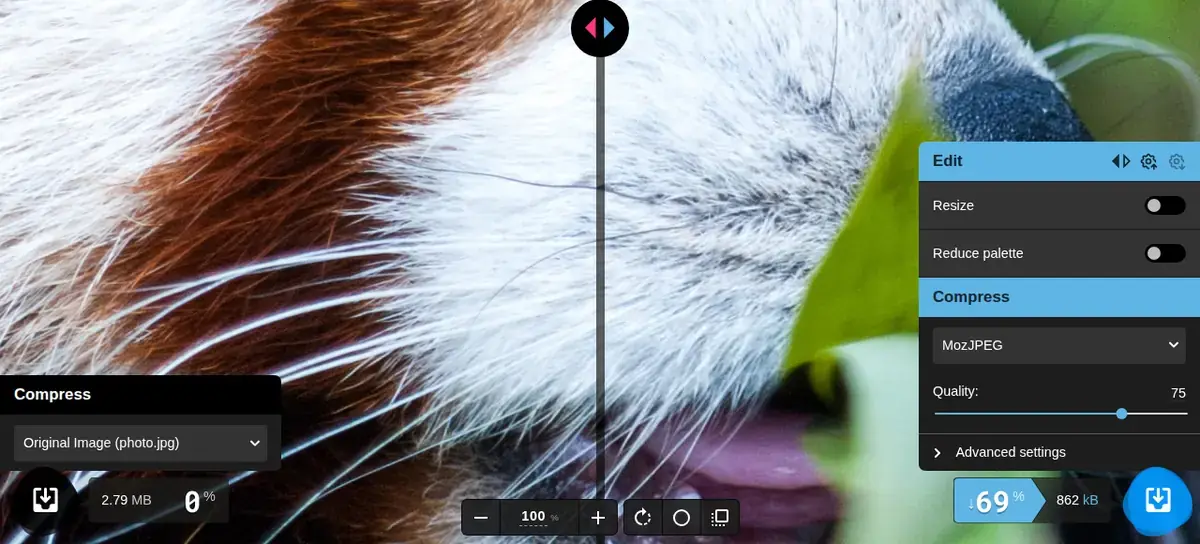
Best for: Deciding the format and quality of one important image.
Formats: MozJPEG, OxiPNG, WebP, AVIF, JPEG XL and others, with a split preview so you can see the original and the result together.
Price: Free. One image at a time.
How to use it:
- Open squoosh.app and drop one image onto it.
- Try WebP, then AVIF. Watch the file size and the preview.
- Judge the picture at the size it will appear on the page, not only at full zoom.
- Download the version that still looks right, and keep the original master.
Squoosh will not batch a media library. Use it to choose a quality setting, then apply that decision in ShortPixel, Kraken.io, or your own build step.
4. Kraken.io – best image compression API for websites
Kraken.io is the best fit when a developer will connect compression to the site. That includes Magento and WordPress, not only a WordPress plugin. The wider Magento set is in the Magento page speed tools guide. The same account covers the API, the web interface, a WordPress plugin and a Magento extension.
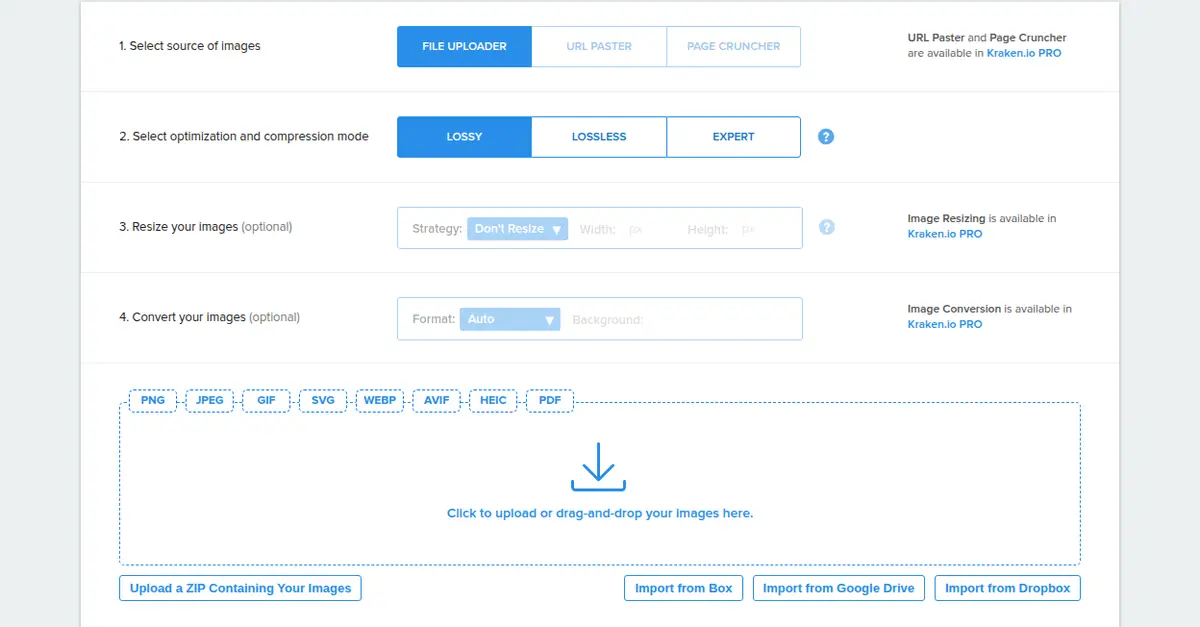
Best for: Automated image compression for a website, a shop, or more than one CMS.
Formats: JPEG, PNG, GIF, SVG, WebP, AVIF, HEIC and PDF.
Compression: Lossy, Lossless and Expert. Kraken says its lossy mode typically saves at least 60% of the original weight, and often more. Check that against your own product photos, especially ones with fine texture or small labels.
Price: A free account includes 100 MB of test quota and does not need a card. Paid plans on Kraken’s pricing page are $5 a month for 500 MB, $9 for 2 GB, $19 for 5 GB, $39 for 15 GB and $79 for 60 GB. Quota is measured on the unprocessed files and is shared by the API, the web interface and the plugins. The free web interface allows 20 files at a time, up to 1 MB each. Resizing, format conversion and a higher file-size limit are on paid plans.
How to use it:
- Compress a few real images on the free web interface and compare Lossy with Lossless.
- If the quality holds, create an account and connect the WordPress plugin, the Magento extension, or the API.
- Use Lossy for photographs and Lossless for logos and images with fine text.
- Resize in the same pass once you are on a paid plan, so you are not storing a 4,000-pixel original as the file the template requests.
Choose Kraken when someone on the team will own the integration. TinyPNG is the faster stop for a handful of files, and ShortPixel is the simpler install on WordPress.
5. EWWW Image Optimizer – best free WordPress plugin
EWWW Image Optimizer is the WordPress plugin to use when you want compression without a per-image credit. The free plugin optimises images on your own server, and it can create WebP versions when the host has the tools it needs.
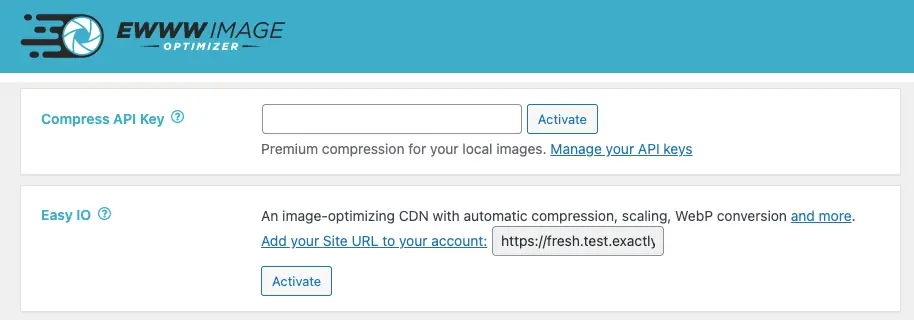
Best for: WordPress sites that can do the work locally, and teams that want a free starting point.
Formats: JPEG, PNG and GIF on the free plugin, plus WebP where the server supports it. AVIF, and automatic delivery of the smallest format, come with the paid Easy IO CDN.
Price: The plugin from the WordPress directory is free for local optimisation. Easy IO starts at $8 a month or $80 a year. That plan includes the CDN, automatic WebP and AVIF, unlimited images and a bandwidth allowance. Higher tiers raise the bandwidth.
How to use it:
- Install EWWW Image Optimizer and run a bulk optimisation on the media library.
- Turn on WebP if the plugin reports that the server can encode it.
- Add Easy IO if you want AVIF, or if the host has disabled the local binaries.
- Re-test a product template and a content template. Local results vary by host, so a spot check matters more here than with a cloud service.
EWWW is the right free plugin. ShortPixel is the smoother bulk-and-AVIF setup if you would rather pay per credit than depend on the server.
6. ImageOptim – best free image compressor for Mac
ImageOptim is a free, open-source Mac app. You drop files on the window. It strips private metadata such as GPS, and it runs several compressors, including MozJPEG, pngquant and SVGO, then keeps the smallest result.
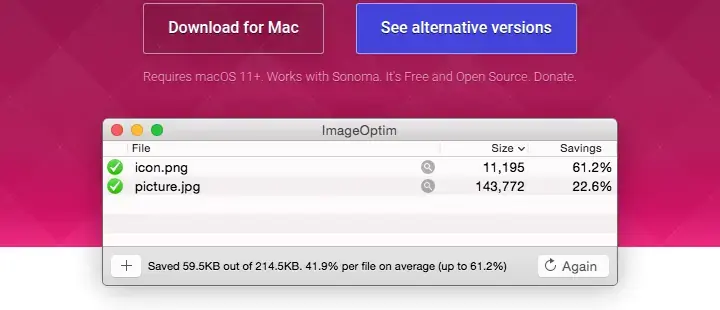
Best for: A designer on a Mac who wants images compressed locally, before anyone uploads them.
Formats: JPEG, PNG, GIF and SVG. The Mac app does not export WebP or AVIF. Create those formats in Squoosh, Photoshop, GIMP, or your CMS plugin.
Price: Free. It needs macOS 11 or later. Install it from the developer’s site. The Mac App Store listing is a different build, and the paid API under the same name is a different product.
How to use it:
- Export JPEG, PNG, GIF or SVG files from your design tool.
- Drop them on ImageOptim.
- For smaller photographs, turn on Lossy minification in Preferences. The default is cautious and keeps every pixel.
- Upload the results, then make WebP or AVIF copies with a tool that can write them.
ImageOptim is excellent at the job it actually does, and it keeps client files off someone else’s server. On a current site it is one step, followed by a modern-format export.
7. Compressor.io – best simple lossy and lossless online tool
Compressor.io compresses JPEG, PNG, GIF, SVG and WebP in the browser, with lossy and lossless modes. That pair of modes is the reason to open it: you can see what lossless saves, and what lossy saves, on the same graphic.
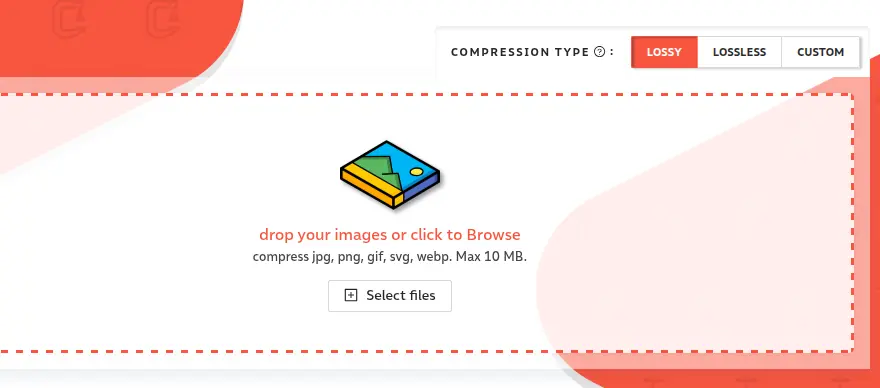
Best for: A single file, when you want a lossy result and a lossless result side by side.
Formats: JPEG, PNG, GIF, SVG and WebP. It does not advertise AVIF, and it is not a WordPress or Magento plugin.
Price: The compressor is free to use in the browser. Some extra controls on the page are marked Pro. If a control you need is locked, use Squoosh or TinyPNG rather than paying for a one-off.
How to use it:
- Open compressor.io and upload one image.
- Compare the lossy and lossless downloads.
- Keep the smallest file that stays sharp at the display size, and upload that to the CMS.
Compressor.io will not compress the next image a colleague uploads tomorrow. Use it for a landing page or a blog post, then put a plugin on the site.
8. JPEGmini – best for JPEG photographs
JPEGmini compresses JPEG, and it can convert HEIC (the format iPhone photos use) to JPEG. It does not produce PNG, WebP or AVIF. The narrow scope is the point: it is aimed at photographers who need a smaller JPEG that still looks like the file they delivered.
Best for: Camera JPEGs, and teams who already export from Lightroom or Photoshop.
Price: A paid desktop app, with plugins for photo editors including Photoshop and Lightroom, and a web version you can try. Confirm the current licence on jpegmini.com.
How to use it:
- Export a high-quality JPEG from the editor, once.
- Run that file through JPEGmini, on the desktop or through the plugin, so you are not re-saving a JPEG by hand.
- If the website can serve WebP or AVIF, make that the file visitors receive, and keep the JPEGmini JPEG as the fallback.
A site that only runs JPEGmini is still sending JPEG to every browser. Pair it with a format converter. Skip it entirely if your images are mostly PNG graphics.
9. Adobe Photoshop – best for hero images you already edit
Photoshop is the right place to compress a picture when you are already retouching it. It is the wrong place to batch a media library of hundreds of files.
Best for: Heroes, campaign assets, and any image where someone needs to look at the quality before it is published.
Formats: JPEG, PNG and GIF are available from the older export paths. In current Photoshop, WebP and AVIF are saved from File > Save a Copy. WebP has been available since Photoshop 23.2 (February 2022). AVIF arrived in Photoshop 26.8 (June 2025). Neither format is offered in Export As or in Save for Web (Legacy). If AVIF is missing from Save a Copy, update Photoshop.
Price: A Creative Cloud subscription.
How to use it:
- Keep the PSD as the master. Do not flatten over it.
- Resize to the largest size the template needs, including a 2x file for high-density screens.
- Choose File > Save a Copy, then WebP or AVIF.
- Inspect skin tones, edges and any text at the size the page uses.
- Hand a large set of images to ShortPixel, EWWW Image Optimizer or Kraken.io.
Photoshop is worth using when someone needs to reject a file that a bulk tool would ship. It is a poor way to compress a whole site.
10. GIMP – best free editor for WebP and AVIF export
GIMP is the free desktop editor for the same job as Photoshop. It runs on Windows, Mac and Linux. Current releases import and export WebP and AVIF from File > Export As. The AVIF dialog includes quality, lossless, chroma and bit depth. GIMP does not export animated AVIF.
Best for: Teams that need a free editor and are happy to export delivery files by hand.
Price: Free.
How to use it:
- Edit the image, then choose File > Export As.
- Name the file
.webpor.avif. Keep the working file as the master. - For a photograph, start with lossy quality and look at the preview. For flat colour and small text, try lossless, or export PNG or SVG instead.
- If an AVIF looks stained along hard edges, raise the chroma setting and export again.
GIMP will not watch a folder on the server. It is the right tool for the files a designer finishes by hand, and the wrong tool for every product image that lands in WooCommerce. That shop setup is covered in WooCommerce image optimisation.
Lossy and lossless compression
Lossless compression packs the file and keeps every pixel. Use it for logos, icons, screenshots of an interface, and any image that contains small text. The file does get smaller, usually by less than a lossy pass would save.
Lossy compression removes detail that people tend not to see at the size the image is displayed. Use it for photographs, backgrounds and lifestyle imagery. JPEG is lossy. PNG is lossless. WebP and AVIF can do either.
There is no universal quality number. A setting that looks clean on a landscape can look blotchy on fabric, hair or a product label. Compare before you apply one setting to a library. Squoosh is the easiest place to do that for a single file. For a bulk run, ShortPixel’s Glossy mode and Kraken’s Lossy mode are sensible starting points, followed by a check of the pages that bring traffic and the pages that take orders.
“Without losing quality” means this: at the size the visitor sees, they should not be able to tell the compressed file from the master. Zoomed to 400% on a designer’s monitor is a different test.
Online compressor, desktop app, or WordPress plugin?
| You are doing this | Use this |
|---|---|
| A handful of images for a page you are editing now | TinyPNG, Squoosh or Compressor.io |
| Files still on a Mac, not uploaded yet | ImageOptim, then a WebP or AVIF export |
| A designer is already in Photoshop or GIMP | Photoshop: File > Save a Copy. GIMP: File > Export As |
| WordPress, including images already in the library | ShortPixel or EWWW Image Optimizer |
| JPEG files inside a Lightroom workflow | JPEGmini, then a modern format for delivery |
| Magento, or a custom app with a developer | Kraken.io |
| Shopify | Shopify’s own image pipeline. A WordPress plugin will not run there |
On Shopify, image SEO is a different job from installing a plugin. See Shopify image optimisation.
Once the files are small, put them closer to the visitor. A content delivery network does that for a spread-out audience. If the media library itself is what makes the origin server busy, image offloading moves the files off the box that also runs the CMS. WordPress delivery, including lazy-loading, is covered in How to Increase WordPress Image Speed.
How to choose between WebP, AVIF and JPEG
Serve AVIF to browsers that accept it, WebP next, and JPEG or PNG last. AVIF is usually the smallest photograph. WebP is the best default, because support in current browsers is effectively universal and the files are still smaller than JPEG at the same visual quality. JPEG remains the right fallback, and the right only-format if the CMS cannot negotiate a modern one. Browser support and the size differences are set out in Google’s guide to choosing an image format.
Logos and simple icons belong in SVG. A photograph does not.
On WordPress, ShortPixel and EWWW’s Easy IO can create the extra formats and point the page at them. If you write the template yourself, a picture element does the negotiation. The hero below is not lazy-loaded. It has width, height and a high fetch priority, because it is the image visitors see first:
<picture>
  <source type="image/avif" srcset="hero.avif" />
  <source type="image/webp" srcset="hero.webp" />
  <img
    src="hero.jpg"
    alt="Team reviewing a website layout on a laptop"
    width="1600"
    height="900"
    fetchpriority="high"
  />
</picture>
Add a second width with srcset when you have a 1x and a 2x file. Keep the original master, and publish the size the template actually displays.
Frequently asked questions
Google does not publish a maximum image weight. Resize the image to the width it is displayed at, then compress a photograph until it still looks clean and stop there. As a practical target, keep a content-column image under about 150 KB and a full-width mobile hero under about 200 KB. Use lossy compression for photographs. Use lossless compression for logos, icons and images that contain small text. The largest saving usually comes from pixel dimensions, not from the quality slider.
AVIF is usually the smallest format for photographs. WebP is the best default for most websites, because browsers in current use support it and the files are smaller than an equivalent JPEG. Serve JPEG as the fallback for photographs, and PNG as the fallback for graphics that need transparency, when the site cannot deliver WebP or AVIF to every visitor. Use SVG for logos and simple icons. Avoid GIF for photographs.
A smaller file downloads faster. When that file is the largest element in the viewport, compression can improve Largest Contentful Paint, which Google classes as good at 2.5 seconds or less for 75% of visits. Set every image’s width and height, because compression does not stop layout shift, and a good Cumulative Layout Shift score is 0.1 or less. Do not lazy-load the hero image. Interaction to Next Paint, good at 200 milliseconds or less, is rarely fixed by compression on its own. Google defines LCP, INP and CLS on its Core Web Vitals page.
TinyPNG is the best free online image compressor for a small batch: 20 images a session, up to 5 MB each, including WebP and AVIF. Squoosh is the better free choice when you want to compare formats on a single image without uploading it. On WordPress, EWWW Image Optimizer is the best free plugin, because it compresses on your own server.
Use lossless compression when a changed pixel would be obvious: logos, icons, interface screenshots and images with small text. Use lossy compression for photographs and busy backgrounds. WebP and AVIF can do either. PNG is lossless. JPEG is lossy. Check the result at the size the page actually displays, not only at full zoom.
Also in this series
This post is part of the page speed optimisation guide.
- 8 Awesome Page Speed Testing Tools
- Page Speed: Minification of Code
- 5 Tools and WordPress Plugins You Can Use to Minify HTML
- Awesome WordPress Plugins for Minifying CSS
- 5 Popular Javascript Minification Tools
- How to Optimise Images to Increase Page Speed
- Using Image Offloading to Improve Page Speed
- 10 Tools for Compressing and Optimising Web Page Images
- 6 WordPress Plugins For Optimising Images
- How to Use Caching to Optimise Page Speed
- Lazy Loading and How it Works
- Using a CDN (Content Delivery Network) to Improve Page Speed
- CDNs to Use With WordPress
- CDNs to Use With WooCommerce
- SSL Impact on Pagespeed Explained
- How to Fix Legacy JavaScript and Increase Pagespeed
- How to Fix Enormous Network Payload and Improve Pagespeed
- How Cache Control Improves Pagespeed
- How to Use Expires Headers to Improve Pagespeed
- How to Use GZIP Page Compression to Improve Pagespeed
- How to Use Keep-Alive to Improve Pagespeed
- Preloading Key Requests to Improve Pagespeed
- Resource Hints Explained
- Enable Text Compression to Improve Pagespeed
- How to Implement Brotli Text Compression
- Reduce Main Thread Work to Improve Pagespeed
- How to Optimise Render-Blocking Resources and Improve Pagespeed
- How to Use Asynchronous Loading to Improve Page Speed
- How to Reduce the Impact of Third-Party Scripts and Libraries
When image compression is not enough
A compressed image on a slow page is still a slow page. After the media is in good shape, what is left is usually the server, a heavy theme, too many scripts, or a hero the browser only discovers late. The rest of that work is in the page speed optimisation guide.
If you want that work done on the site, start with our page speed optimisation. Sites on WordPress can go to WordPress page speed optimisation. If crawlability or indexation is part of the problem, our technical SEO team takes it from there.
Compress the files you have, serve a modern format, and measure LCP on the templates that matter. That is the job of an image compression tool. Everything after it is page speed.