
Google Search Console is a brilliant platform that helps you to understand your site. Google Search Console provides insights into clicks, impressions, search queries, and indexing issues for all types of websites. Today, we are going to be running through a quick guide on how to link a WooCommerce Site to GSC.
We’ll explore two methods to link Google Search Console to your WooCommerce site: adding the HTML tracking code to your site’s header or using a WordPress plugin, which we find quick and easy.
Setting up a Property in Google Search Console
Although we will be looking at different methods to add the Google Search Console tag code, the first step in this guide is exactly the same for both methods. So, we will run through this quickly and then move onto each of the methods.
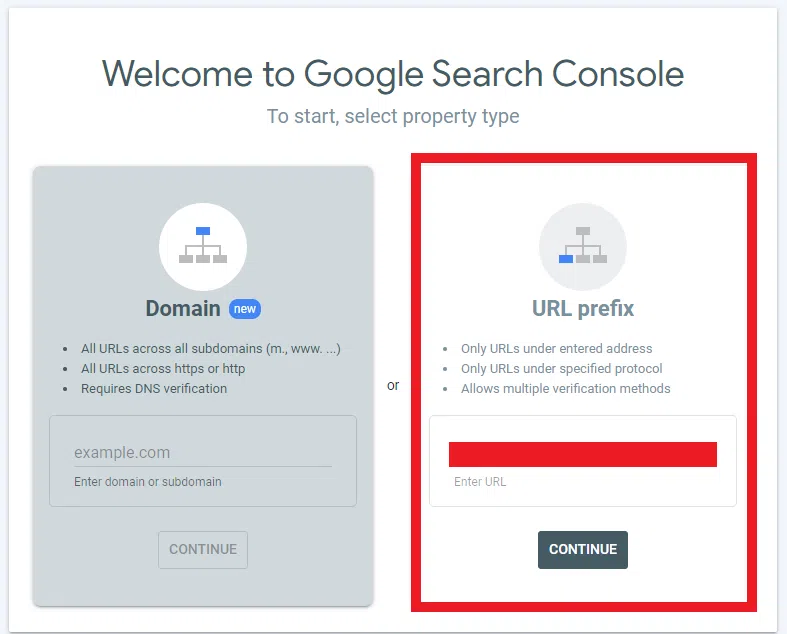
Firstly you’ll want to go to the Google Search Console website. Next, add a property and choose between verifying via domain or URL. You’ll want to choose the URL verification option, which I have highlighted in the image on the right hand side, from here it’s just as simple as adding in your sites URL.
Linking Google Search Console to WooCommerce via HTML Code
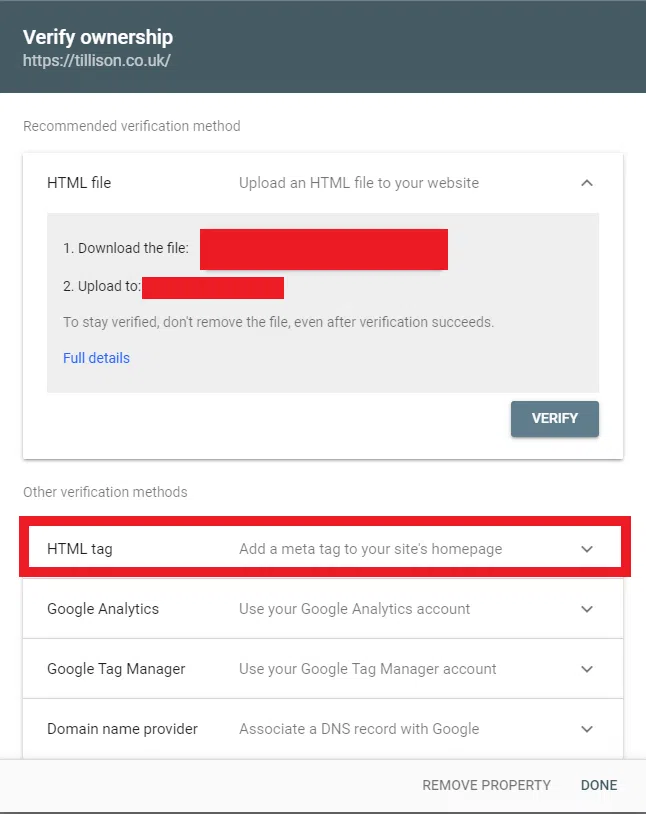
After you enter your site’s URL to be verified Google Search Console will then take you its verify ownership window.
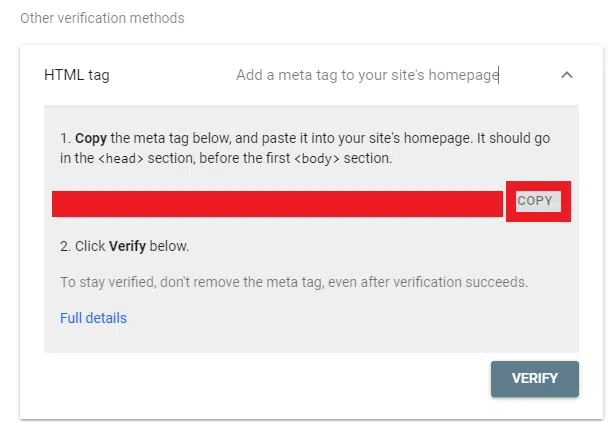
From here you’ll want to click the HTML tag option, which will then become a drop down menu which will give you your HTML code (I have covered ours up in this example.) If you then click copy, the HTML code will be copied to your clipboard.
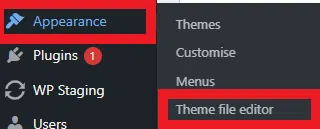
Once you’ve copied your Google Search Console HTML code, you’ll then want to sign into the backend of your WooCommerce website and navigate your way to the appearance tab in the left-hand menu. This will show another menu to which you’ll want to click on Theme File Editor, this allows you to edit the coding that makes up your WooCommerce site.
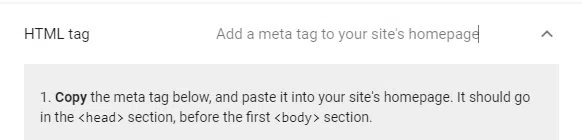
Next it is as simple as pasting the code you had copied from Google Search Console into the code itself. However as stated on Google Search Console and shown in the image above, the HTML code must be pasted in the <head> section, before the first <body> section. Once this has been done all you need to do is go back to your Google Search Console window and click the verify button in the HTML tag option.
Linking Google Search Console to WooCommerce Using Yoast
I would personally say that using the Yoast plug-in is probably the easiest way to link Google Search Console to your WooCommerce. If you haven’t already installed Yoast, you can install it through the plug-ins tab in the back end of your WooCommerce site, and although they do have subscription-based packages, they do also offer a free version which also works really well.
Similarly to the example, we have for the HTML code link, you’ll want to make sure you have begun verifying your site through Google Search Console and that you are now at the verify ownership window, where you are able to copy the HTML code.
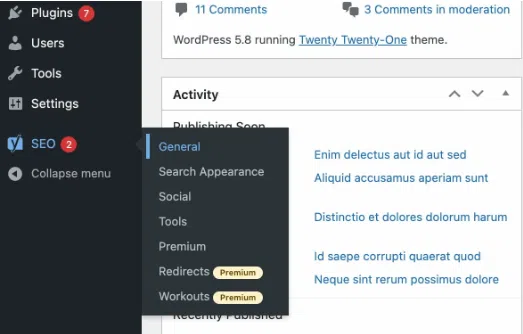
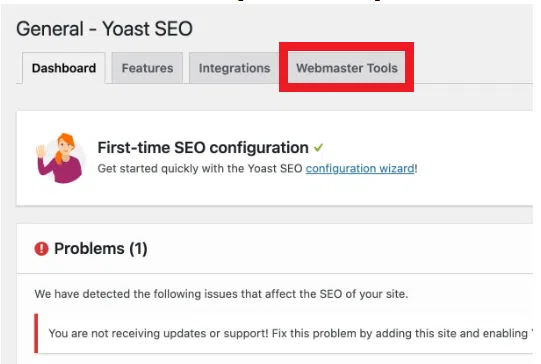
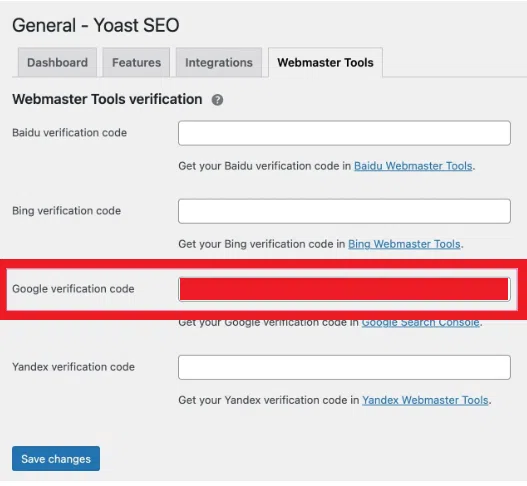
Next, you’ll want to log into the backend of your WooCommerce website, and from there navigate down the left-hand menu to find the Yoast tab, this will create a drop-down menu where you’ll want to click general. Once you have located the Yoast General Settings you’ll want to click the “webmasters tools” tab and from there paste the Google verification code into the box provided. Finally, you’ll want to go back to Search Console and click the verify button.
Use Cases of Connecting WooCommerce Sites to Google Search Console
Google Search Console offers invaluable insights and tools for website owners, and integrating it with your WooCommerce site can provide numerous benefits tailored to eCommerce operations. Here are some key use cases:
Performance Monitoring and Optimisation:
With Google Search Console, you can track important metrics such as clicks, impressions, and click-through rates (CTR) specific to your WooCommerce site. This data enables you to assess the performance of your product pages, identify popular search queries, and optimise your content to enhance visibility and drive more traffic to your online store.
Identifying Search Query Trends:
Understanding the search queries that lead users to your WooCommerce site is crucial for targeting the right audience and optimising your product offerings. Google Search Console provides insights into the keywords and phrases users are using to find your products, allowing you to tailor your SEO strategy and content to match their search intent effectively.
Monitoring Indexing Issues:
Ensuring that all your product pages are properly indexed by Google is essential for maximising your site’s visibility in search results. Google Search Console alerts you to any indexing issues or errors encountered by search engine crawlers, enabling you to quickly address them and ensure that your products are discoverable to potential customers.
Enhancing eCommerce SEO:
By analysing the search performance data provided by Google Search Console, you can refine your eCommerce SEO strategy to target high-converting keywords, optimise product titles and descriptions, and improve the overall user experience on your WooCommerce site. This can result in higher rankings, increased organic traffic, and ultimately, more sales.
Tracking Search Appearance: Rich Results, Structured Data & Merchant Listings:
Google Search Console provides insights into various search appearance methods like rich results, product snippets, reviews, and price information on SERPs. By monitoring rich results and using structured data markup, you can boost your product listings’ visibility and appeal, potentially increasing click-through rates and conversions.
Additionally, Google Search Console now offers visibility into a new type of search appearance: organic merchant listings. Similar to paid merchant listings, organic merchant listings showcase a variety of products directly within the search results. This new feature utilises merchant listings and Google products to pull through a curated selection of products relevant to the user’s search query.
By monitoring your site’s organic merchant listings through Google Search Console, you can ensure that your products receive prominent visibility in this highly visible search format. Optimising your product data and leveraging structured data markup can increase the chances of your products being featured in these organic listings. This offers you another opportunity to attract potential customers and drive sales directly from the search results page.
We hope this guide simplifies the process of linking your WooCommerce site to Google Search Console. This platform is indispensable for effectively managing your WooCommerce website.
And don’t forget here at Tillison, we provide a range of eCommerce services such as WooCommerce SEO, SEO for eCommerce and CRO for eCommerce.