

In this blog post, we are going to look at disapproved products in Merchant Centre due to incorrect identifier GTIN. We are going to see what causes that invalid value in GTIN and how to fix this issue.
We’ll be addressing two issues reported in Google Merchant Centre:
- “limited performance due to missing value GTIN”
- “add your product’s globally valid GTIN”

To begin, we advise that you watch the video below, which goes over what a GTIN is and why you need it for Google Shopping. If not, let’s go over it quickly before we begin.

What is a GTIN?
Whether you’re running on Shopify, WooCommerce or Magento GTINs play a massive role in eCommerce. GTIN stands for Global Trade Identification Number. GS1, the organisation responsible for managing GTINs, plays a crucial role in ensuring accurate product identification & Google relies on GTINs to precisely categorise products within its vast database.
Google has access to a vast database containing information about every product available on the internet. If a product has a Global Trade Identification Number (GTIN) or a unique identification number, Google can precisely identify it. In such cases, Google knows exactly what the product is, and recognises that it should have a unique identifier, and typically, it does have one.
Accurate product data, including GTINs, are essential for optimising your listings on Google Merchant Centre. Ensuring that your product information is correct and up-to-date not only improves the visibility of your listings but also enhances the overall user experience for shoppers browsing your products.
Ensuring you’re using an accurate GTIN for each product is vital to avoid disapprovals on Google Merchant Centre. Incorrect GTINs can lead to limited efficiency and disapproved product listings, hindering your ability to reach potential customers and drive sales.
Where can I find a product’s GTIN?
Product identifiers like GTINs, along with other identifiers such as UPCs (Universal Product Code) and ISBNs (International Standard Book Number,) play a crucial role in ensuring that your products are correctly identified and matched with relevant search queries on Google Merchant Centre.
So where can we find our product identifiers? They typically are just the barcode on the product, whether it’s a mobile phone, a book, or any other item. So, if you’re selling these products, go over to your stockroom, and you’ll find the ID on your products there. If you’re buying the products from somewhere else, that ID should be available from your supplier.
The GTINs exist for millions of products, but not every product has one. If you make a product yourself or it is a small manufacturer, then it probably doesn’t have one. But if it does have a Global Trade Identification Number and Google knows about it, then you have to include that data. It is not optional; you must include it.
What can cause “invalid Value GTIN”?
It may be if you are perhaps making up the GTIN (if you don’t know what it is). You have to put the actual Global Trade Identification Number for that product, so you must go find out what it is! Google’s huge data storage is ultimately going to be the one that is ‘correct’, so try to follow along with it as much as you can.
GTIN issues can result in disapproved listings, affecting the visibility and performance of your products. When products are disapproved due to GTIN discrepancies, they may not appear in relevant search results on Google Merchant Centre, leading to missed opportunities for customer engagement and sales. It’s essential to address GTIN issues promptly to maintain optimal Visibility and impact for your product listings.
Here are some of the common reasons for this issue:
Value contains characters:
One common issue arises when GTIN values contain characters that aren’t recognised by Google’s system. This can occur when special characters or incorrect formatting are included in the GTIN, leading to discrepancies between the provided GTIN and Google’s database. You must ensure that GTIN values consist only of numeric digits and adhere to the standardised format to avoid such issues.
GTINs typically consist of 14 digits, providing a standardised format for product identification. This consistent length ensures uniformity across product listings and facilitates accurate identification and categorisation on platforms like Google Merchant Centre.
Invalid checksum:
An invalid checksum in the Global Trade Identification Number can trigger disapprovals in Google Merchant Centre. The checksum is a digit added to the end of the GTIN to ensure its accuracy and integrity. If this digit is incorrect or missing, Google’s system may flag the GTIN as invalid, leading to the disapproval of affected products. It’s important to double-check GTINs for accuracy, including the checksum, to avoid such issues.
How do I identify a GTIN issue?
If you encounter GTIN issues, Google’s diagnostics page can provide valuable insights and suggestions for resolution. This page offers detailed diagnostic information about your product listings, including any GTIN-related errors or discrepancies, helping you identify and address issues promptly to maintain optimal performance on Google Merchant Centre.
Final Attributes
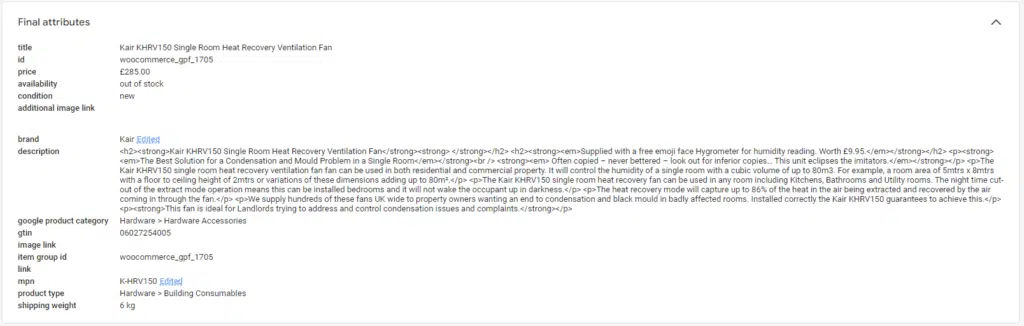
So if you look at this example here, there is a feed coming from the website. Remember, the data is in the database, so on the website, the data is being output by a feed (or an API if you’re using something like Shopify) and that is being pulled into the Merchant Centre. This data is coming directly from the website.
What is being picked up here is the GTIN is being declared in the data store, which is then pulled into the Merchant Centre. Google is looking at this product on the website and searching for the declared GTIN.
In this case, however, it is looking at the product and saying that his GTIN number is incorrect and is in fact the GTIN that Google has entered. It’s analysing the data from the database and not matching it up with the GTIN that Google has in its database. Google is cross-referencing the GTIN with the product that’s on the page, and saying that that ID is x, but the data store is declaring it to be y. That is why it is being flagged as an invalid GTIN and you’re most being asked to “add your product’s globally valid GTIN”




Is my GTIN different for different variations of a product?
Your GTIN number will be the same for a product of different colours. So if you sell a yellow, a white, a black, and a green (separate) T-shirt, but they remain to be the same type of T-shirt, this will be the same GTIN.
However, what you really want is to have separate products in the feed to match user intent in their search journey.
How to create different variations of a product in my feed.
If someone is searching for a yellow T-shirt, you don’t want your green T-shirt to show- even if it does have a yellow variation! You want to show the yellow T-shirt, have someone click on the yellow T-shirt, and make a sale for the yellow T-shirt.
We don’t want to run into an issue here, so let’s find out how to solve this to make both Google and the searching user happy.
What NOT to do when getting your GTIN for product variations
One way to create these invalid value GTINs is to put some random data that is not correct. You might be mapping the MPN field into the GTIN, but of course- that is incorrect. You may have put the ID into your database on the backend of your website, and it may just be missing a digit off the end, that is also something to check if you have an invalid GTIN.
The other thing is that sometimes there is a product, let’s say it’s a bundle, that has an item, let’s say a TV, in it and an accessory- perhaps a speaker. The TV with the speaker has a Global Trade Identification Number (GTIN = 123) and then perhaps you have decided that you want to sell the TV and the speaker separately.
Now, we’ve got a product that Google might think has a GTIN, but it doesn’t because the GTIN (123) is for the TV and the speaker, whereas you now want to sell the TV separately. Maybe you use the GTIN (123) for the product, not the accessory, but that isn’t really right. The TV and speaker bundle (GTIN = 123) is £100, for example, the TV is £90 (still GTIN = 123) and the speaker is £10 (GTIN = 123 also). Although they are now separate products on your website, the Global Trade Identification Number remains the same but, as every Global Trade Identification Number has to be unique, this is incorrect and Google will find this.
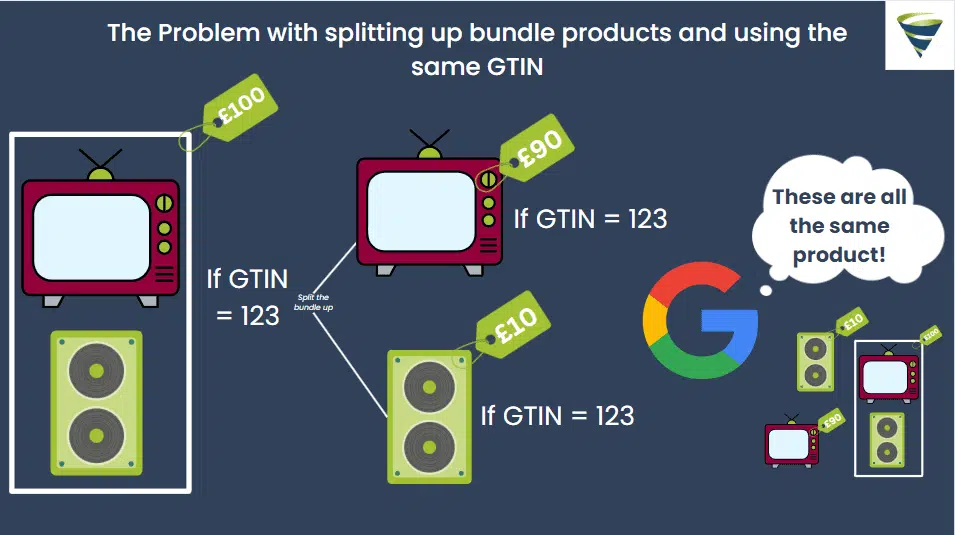
If you have this scenario, you perhaps may want to try to appeal to Google, but you probably won’t get too far. Google Support does not understand your product as you do, so it’s likely that this will not work.
What are my options then?
Providing specific product details, including GTINs, enhances the visibility and relevance of your listings to potential customers. By accurately identifying each product with a unique GTIN, merchants can ensure that their listings appear in relevant search results and are more likely to attract the attention of interested shoppers.
However, in cases where products are bundled with accessories and assigned the same GTIN, merchants may face challenges. While one option is to include the GTIN with the main product and remove the accessory, this can lead to discrepancies as the identifier for the bundle no longer exists.
Alternatively, if merchants must advertise the accessory separately, splitting it without compromising accuracy can be complex. Despite these challenges, it’s essential to adhere to Google’s requirement that every GTIN must be both unique and correct according to their database.
Summary
Ideally, you want to include your GTIN in your original data on your website, rather than having separate feeds. You could create a supplemental feed, but again, you will be causing yourself some more problems with automated data sources being supplemented with manual data sources when you’re coming to add new products.
If you fix your GTIN issues in your data feed, then you will solve your Google Merchant Centre incorrect identifier GTIN issues.
If you have some unique problem that is not listed, please comment below, and we’ll see how we can help.